
Add a program and its price
Programs are your courses. The title and details show at once. The price, financing and job placement help wait for a short review.
Updated 2026-10-11For owners and managers
Before you start
- You are on your school page. Open Programs.
Steps
-
Press Add a program.
-
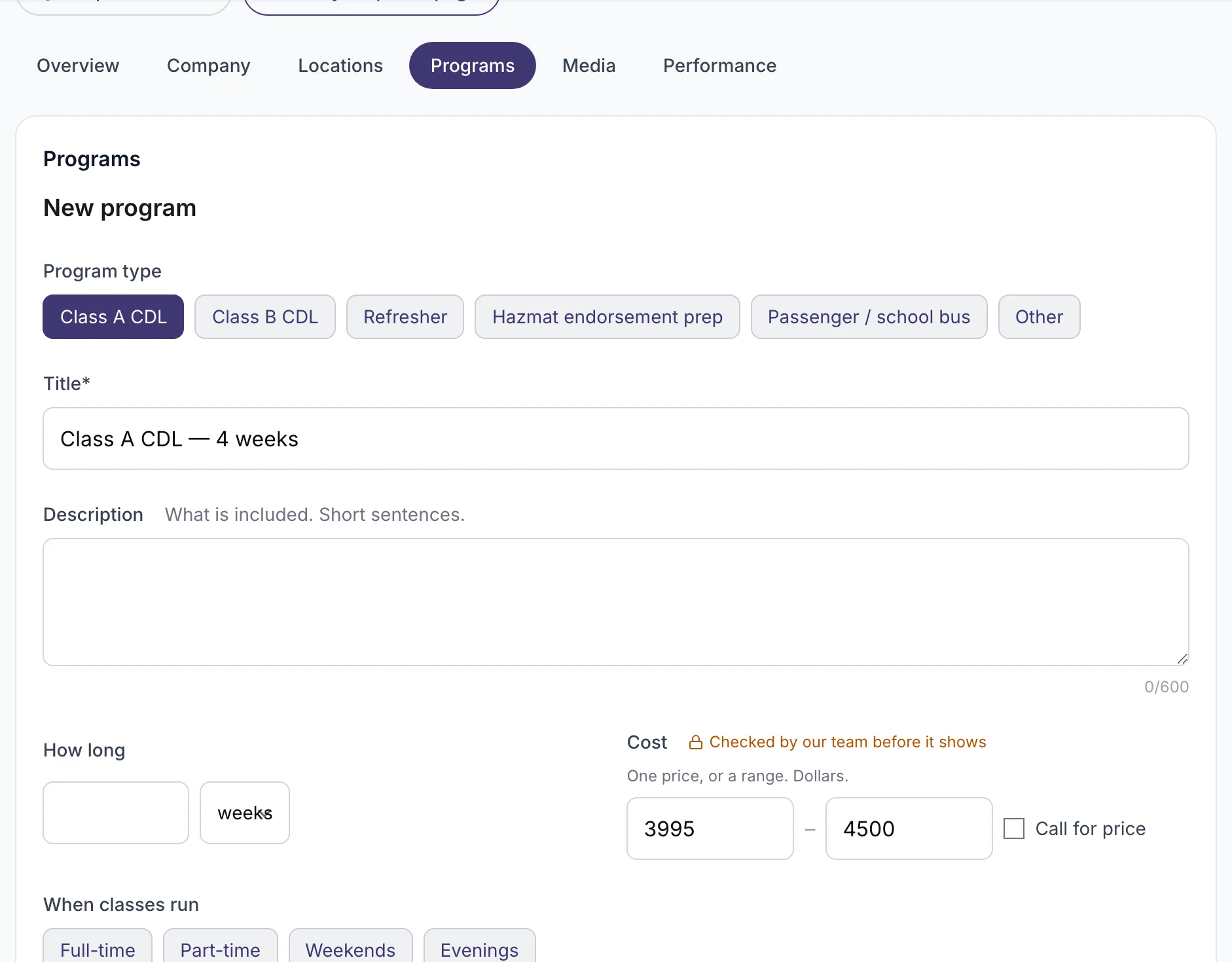
Choose the type, for example Class A, and write the title.
-
Add the length, the schedule and the languages of the classes.
-
Add the price. One price, or a range from low to high. If you prefer to quote by phone, choose Call for price.
-
Tick the financing options you offer and whether you help with job placement.
-
Press Save program.
-
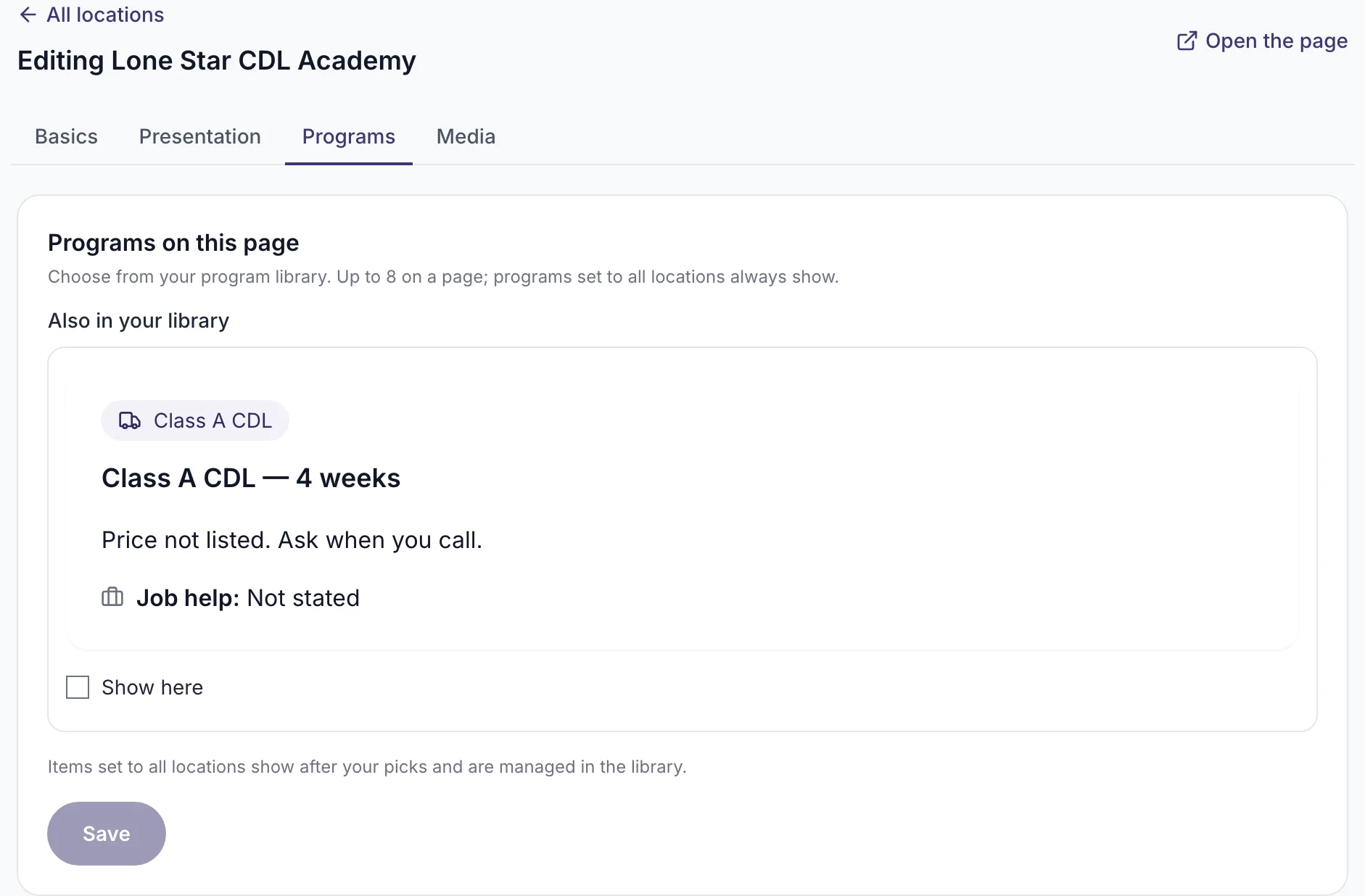
Open Locations, press Edit on a location and open its Programs tab. Tick Show here next to the program and press Save. Each location can show up to 8.
What you will see
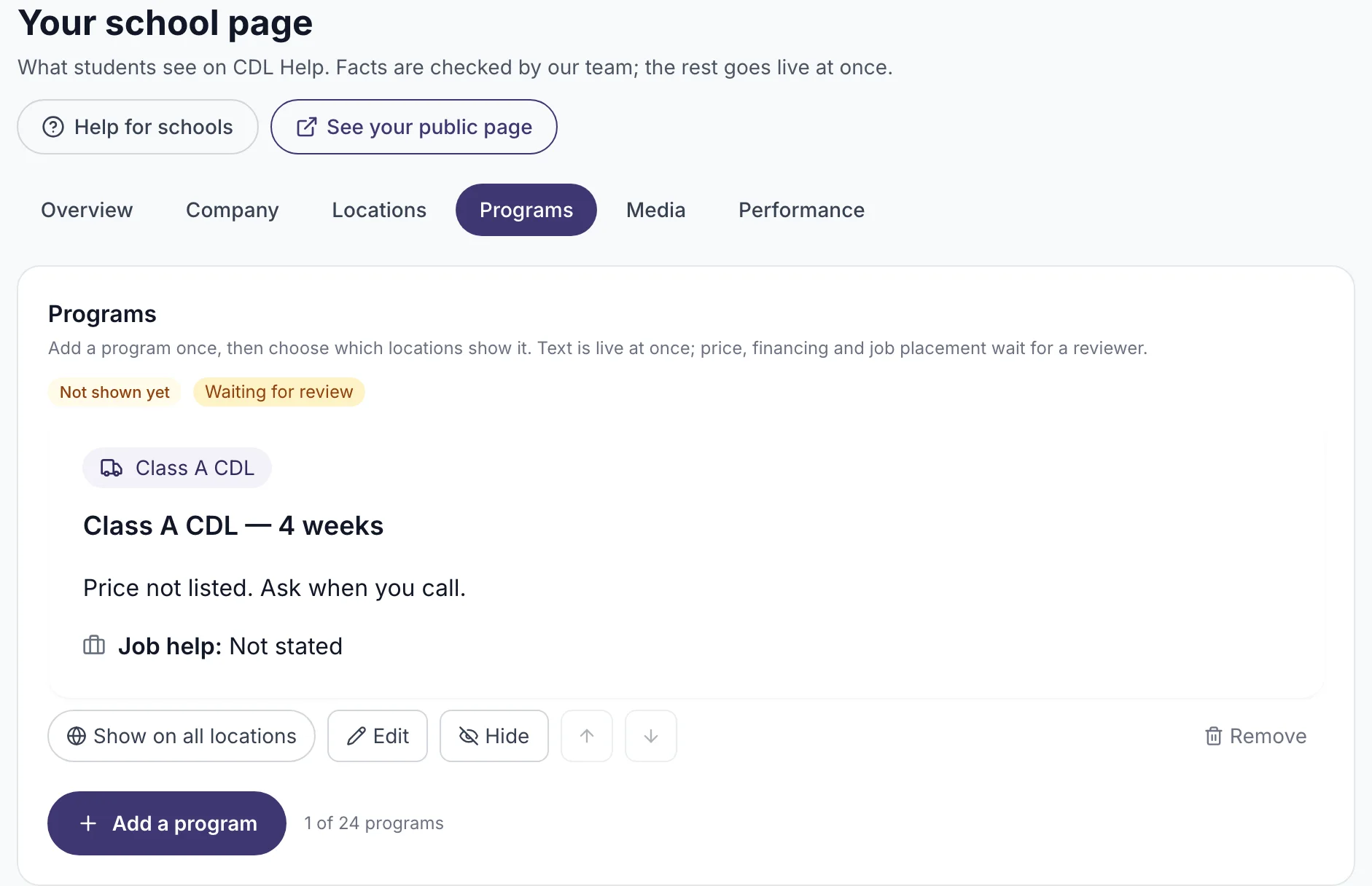
The program in your list. The price shows "Waiting for review" until our team checks it. The title and details already show on the public page.
If it does not work
- The price was rejected. The email says why. Students must see the real price or "call for price".
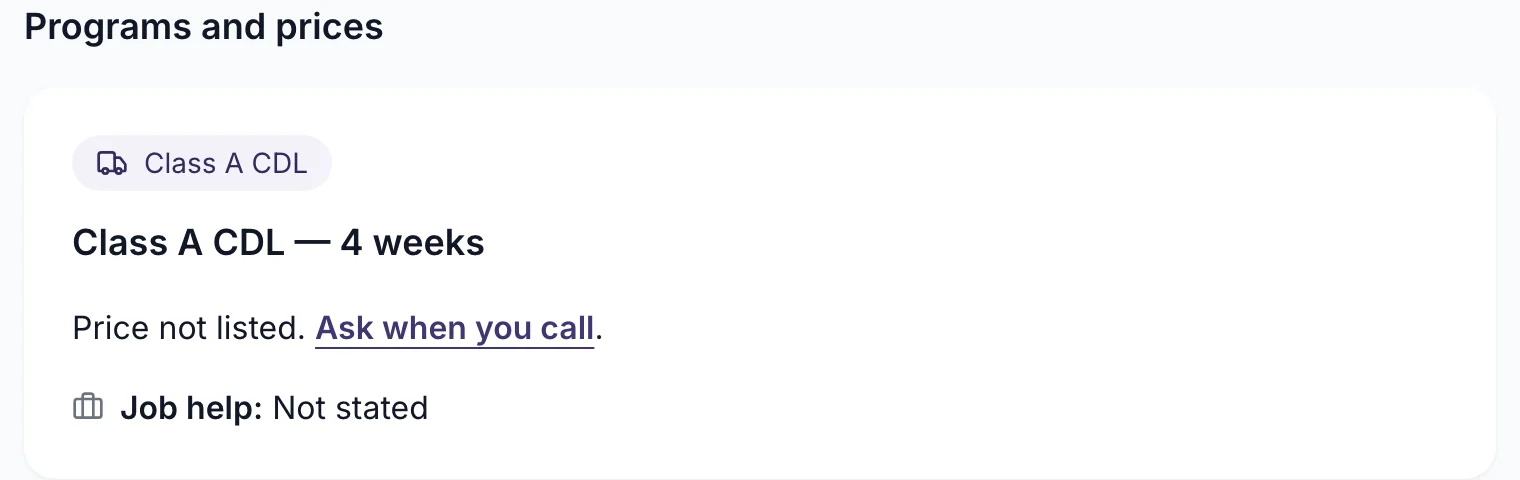
- The program is not on the public page. The location did not pick it. Open the location's Programs tab and pick it.
- You reached 24 programs. That is the limit for an account. Delete one you no longer offer.
What happens next
Our team checks the price, financing and placement claims, usually within 2 business days. Then they show on the public page.
Related
Still stuck? Write to us