
Your school page: what you can change
One page to manage everything about your school on CDL Help. Some changes show at once, some wait for a short review.
Updated 2026-10-11For every team member
Before you start
- Our team approved your claim.
- You are signed in. Open your school page from the top bar, or press Go to your Company Profile on the claim page.
Steps
-
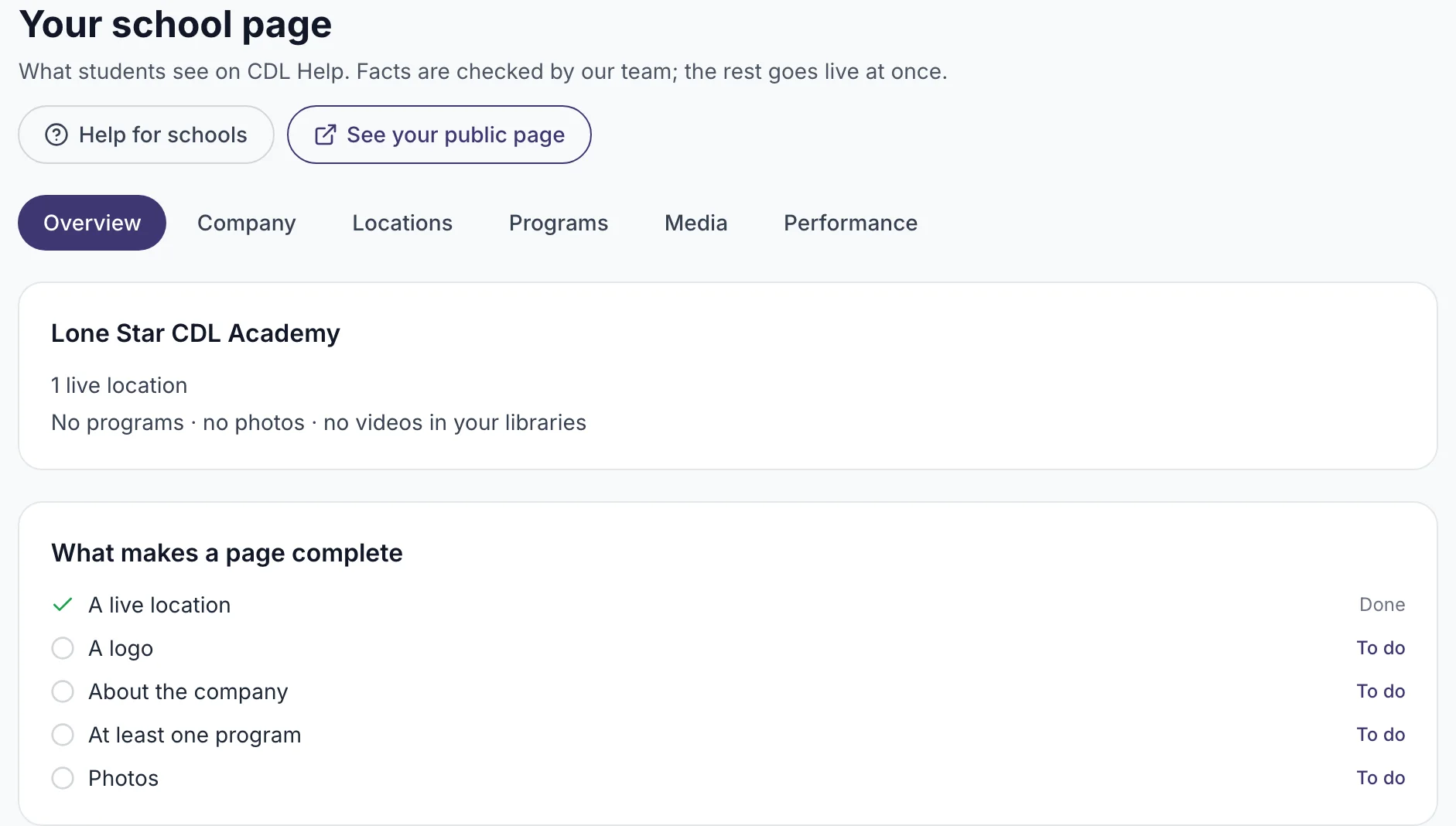
Open your school page. The sections are in the menu at the top.
-
Company holds the logo and the text about the company. The text is reviewed before it shows.
-
Locations lists every campus. Open one to change its facts, its tagline, and which programs and photos it shows.
-
Programs is your list of courses. Each location picks which ones to show.
-
Media is your photo and video library and the cover photo.
-
Performance shows how many people viewed your page, called, or asked for directions.
What you will see
Every section saves with one button. A change that waits for review shows "Waiting for review" until our team checks it.
| Shows at once | Waits for review |
|---|---|
| Tagline and highlights | Name, address, phone, website |
| Photos, videos, cover and logo | Description of a location |
| Program title, length, schedule, languages | Program price, financing, job placement help |
| Which programs and photos each location shows | About the company |
If it does not work
- You see the public page, not the editor. You are not signed in, or you are not on the team. Sign in, or ask the owner to add you.
- A button is missing. Your role is HR. HR can see the page but cannot edit it. Ask the owner for the Moderator role.
What happens next
Reviewed changes usually show within 2 business days. You get an email when our team decides.
Related
Still stuck? Write to us