
Change your name, address, phone or website
These facts go to our team for a short check before they show. You see "Waiting for review" until then.
Updated 2026-10-11For owners and managers
Before you start
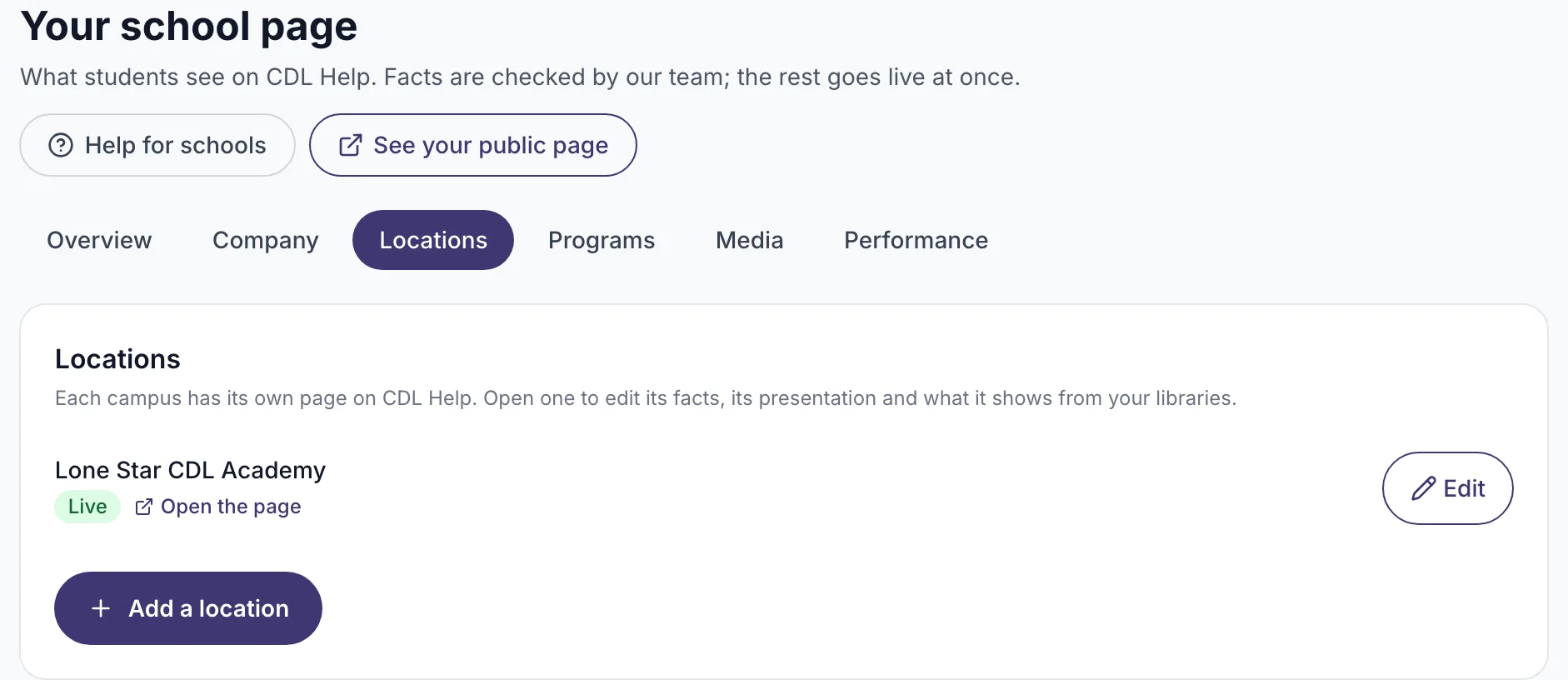
- You are on your school page. Open Locations and press Edit on the location you want to change.
Steps
-
Open Locations and press Edit next to the location.
-
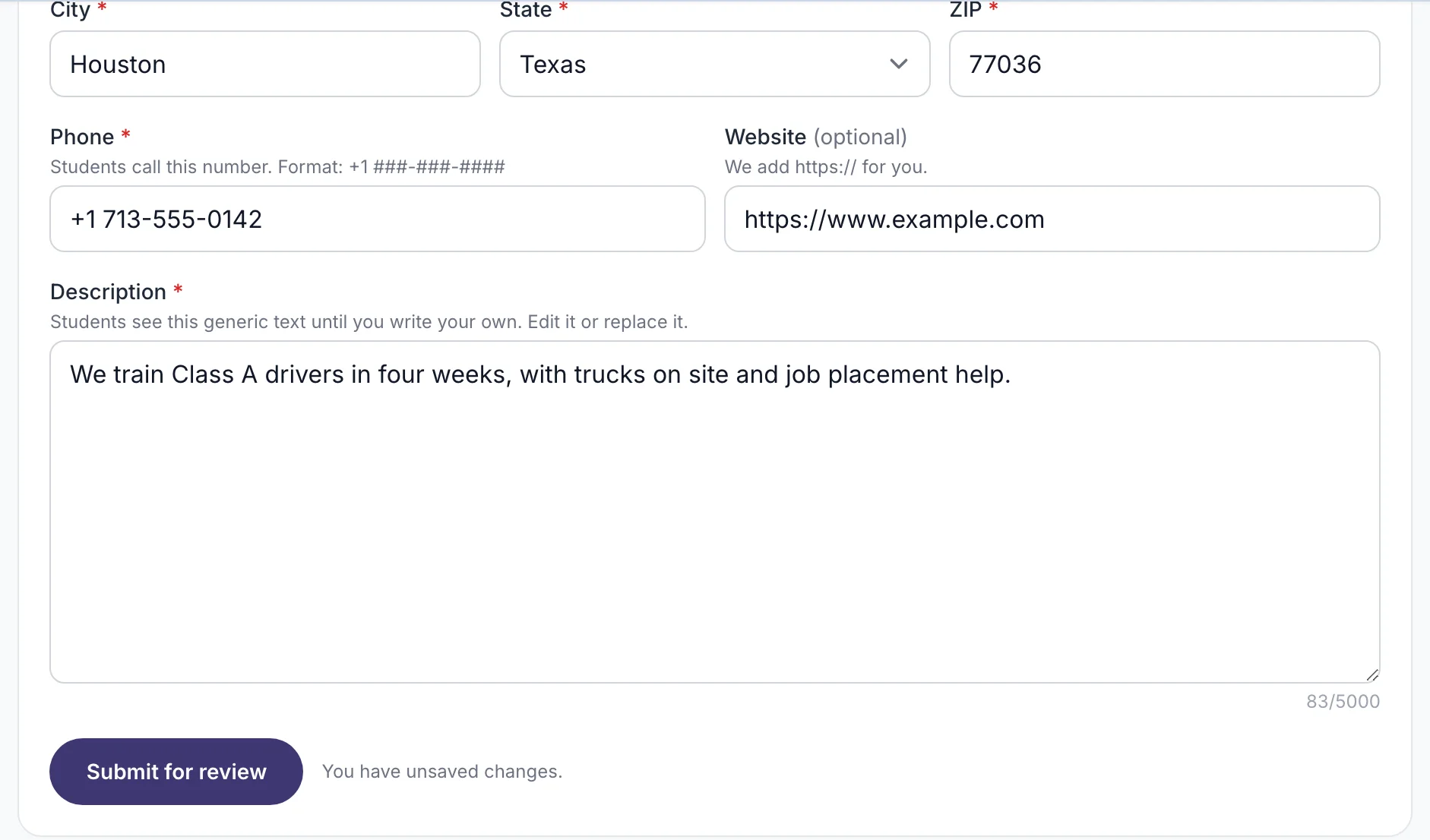
Change the facts: name, street address, city, state, ZIP code, phone, website, or the description.
-
Press Submit for review.
What you will see
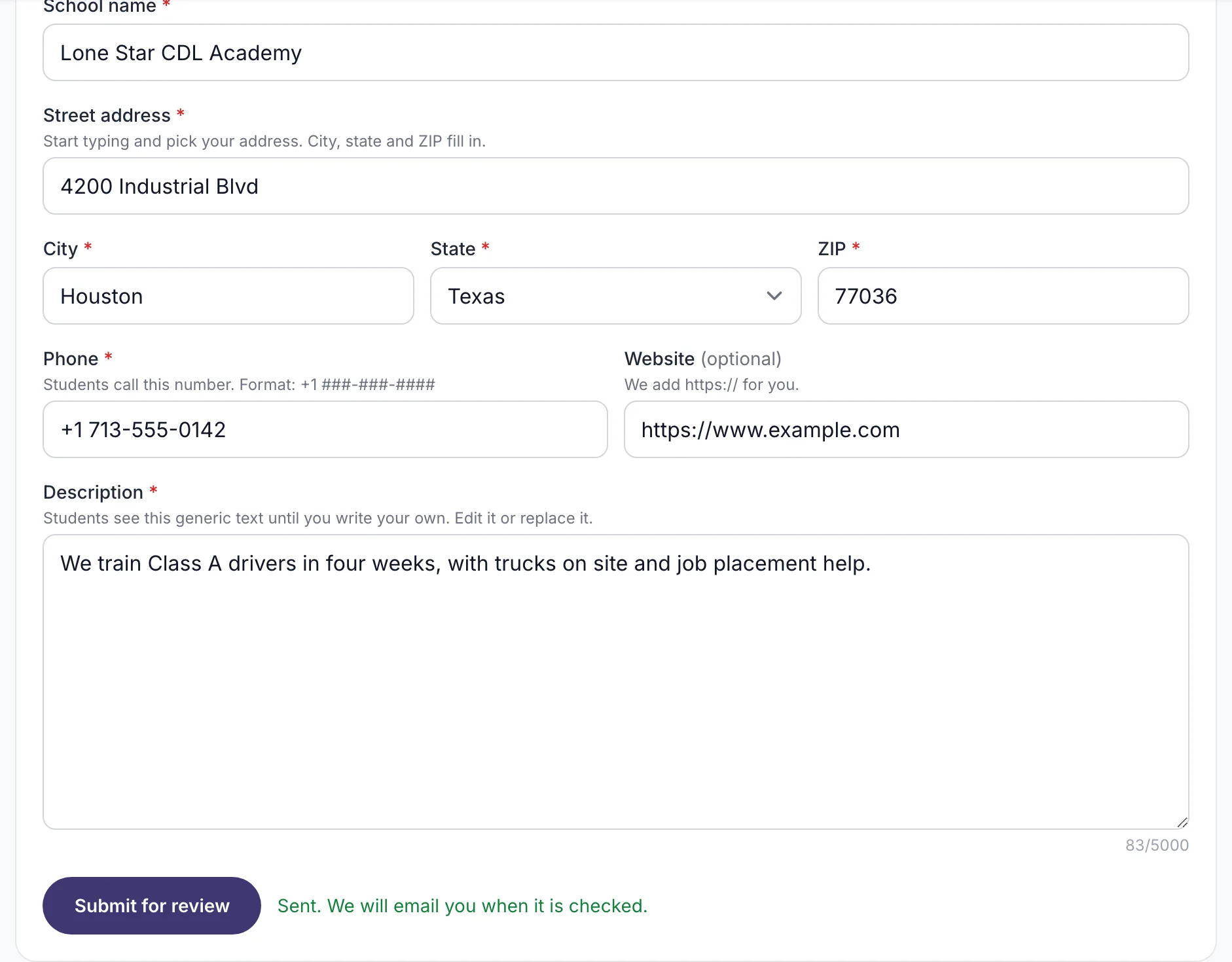
"Waiting for review" at the top of the tab. The public page keeps the old facts until our team approves the new ones.
If it does not work
- You changed your mind. Submit again. The new change replaces the one that is waiting.
- The address field does not suggest anything. Type the full address by hand. That works too.
- Our team rejected the change. The email says why. Fix it and submit again.
What happens next
Our team checks the facts, usually within 2 business days. You get an email either way. Approved facts show on the public page at once.
Related
Was this helpful?
Still stuck? Write to us