
You were invited to manage your school
Our team set up your account and attached your locations. Open the link, check the list, choose a password, and start editing.
Updated 2026-10-12For anyone
Sometimes our team sets a school up first and then sends one link. That happens when a school writes to us, or when we talk on the phone. Nothing to prove and no form to fill in.
Before you start
- You have the email with the link, or the link from a message. It only works for the email address it was sent to.
- The link works for 30 days. If it has expired, reply to the message and we send a new one.
Steps
-
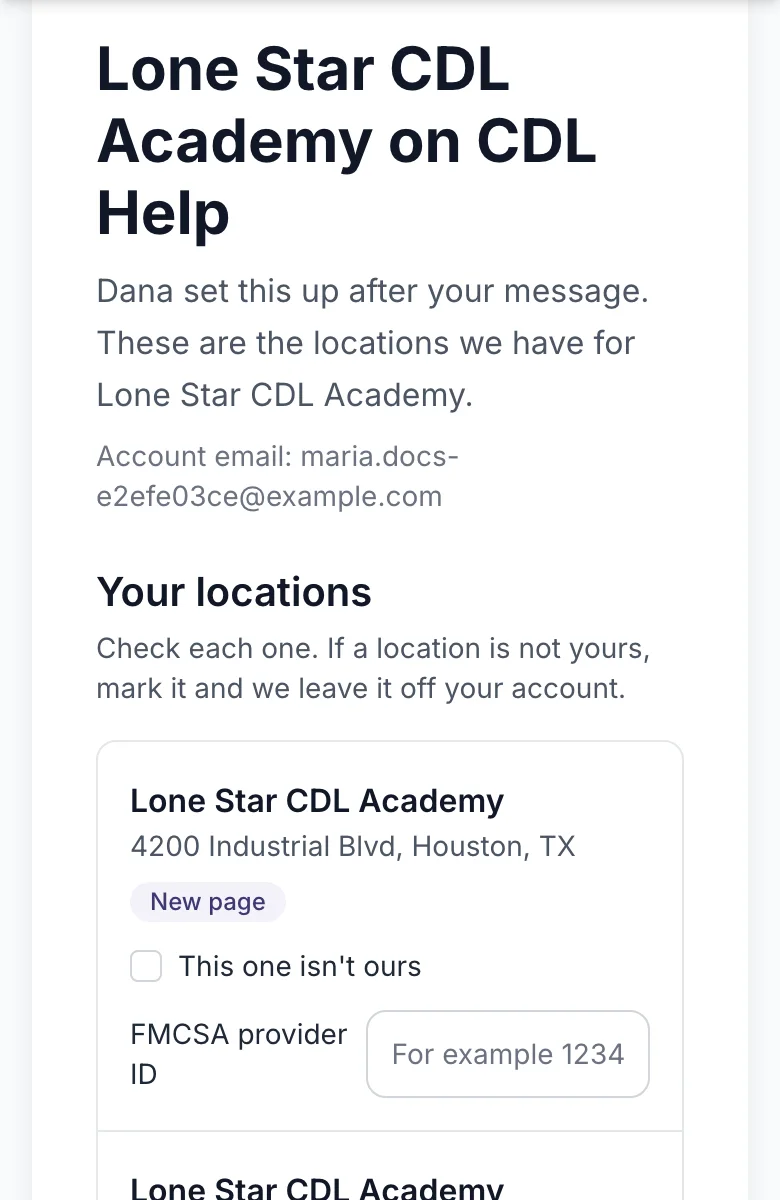
Open the link. The page lists the locations we attached to your account.
-
Check the list. If a location is not yours, tick This one isn't ours under it. We leave it off your account.
-
If you have the FMCSA Training Provider Registry ID for a location, type it. This is optional. It helps us show the page faster.
-
Something else wrong? Write it in Something's off? Tell us.
-
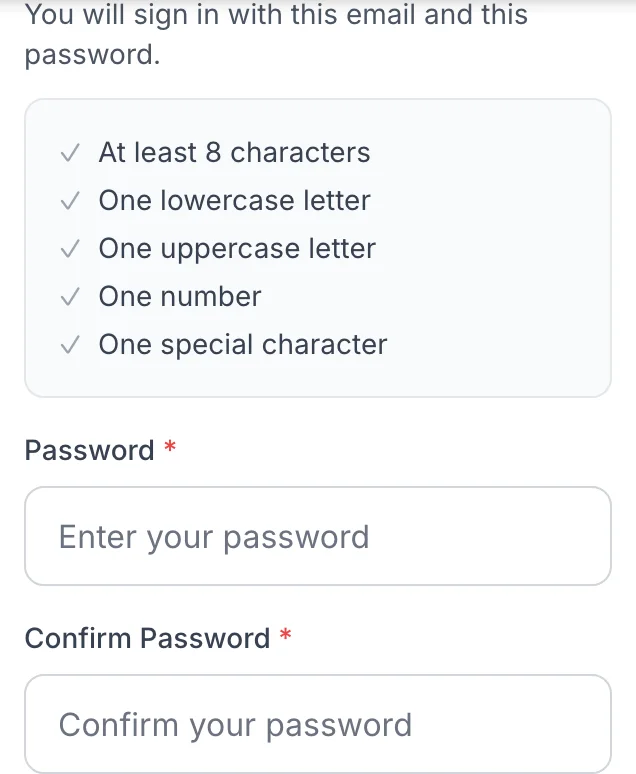
Choose a password and type it twice. You will sign in with this email and this password.
-
Press Continue. If this email already has an account on CDL Help, press Sign in instead.
What you will see
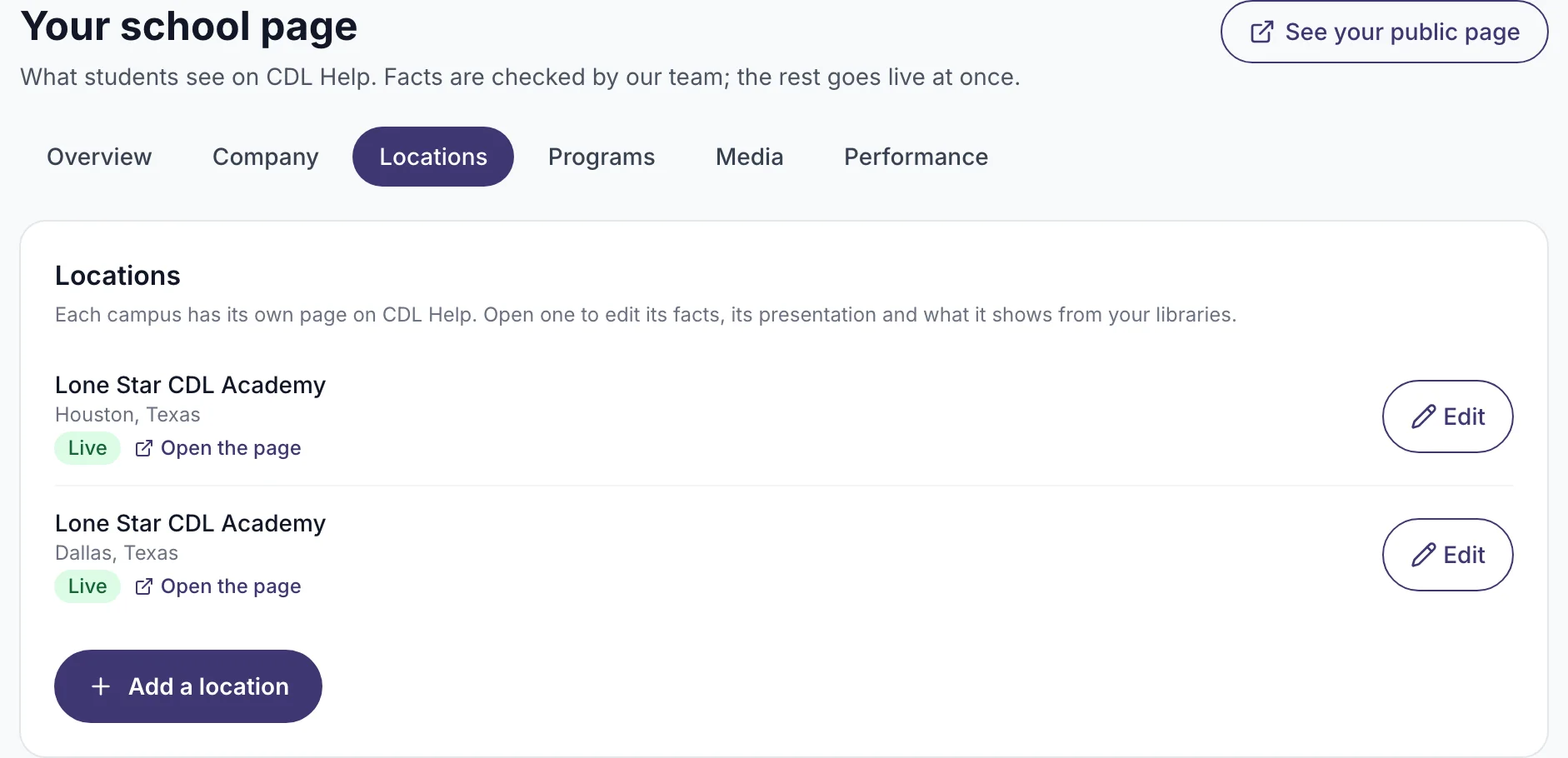
Your school page, open on Locations. Every location is there. Pages that were already visible now show "Managed by the school" and appear first in our lists.
If it does not work
- The link says it was already used. Sign in with your email and password instead.
- The link has expired. Reply to the message that brought you here. We send a fresh link.
- A location is missing from the list. Press Add a location on your school page, or tell us in the note.
- A location is on your account but not on the site. We are checking it against the FMCSA registry. We tell you when it is done.
What happens next
You can edit every page. Some changes show at once, some wait for a short review. See Your school page.
Related
Still stuck? Write to us